
Laptop Typing with Mangal Font: Navigating the Missing Numpad Problem
If you’re using the Mangal Font Remington Gail Keyboard Layout on a compact laptop, you’ve likely hit a frustrating wall: Alt Codes don’t work!
Alt Codes (like Alt + 8377 for the $₹$ symbol or codes for $ॐ$ and $।’$) are mandatory for professional Hindi typing, but they require a dedicated Numeric Keypad (Numpad) a feature often missing on smaller laptops.
This guide provides three reliable strategies to overcome the missing Numpad problem, ensuring you can maintain accuracy and speed, even on a slim laptop.
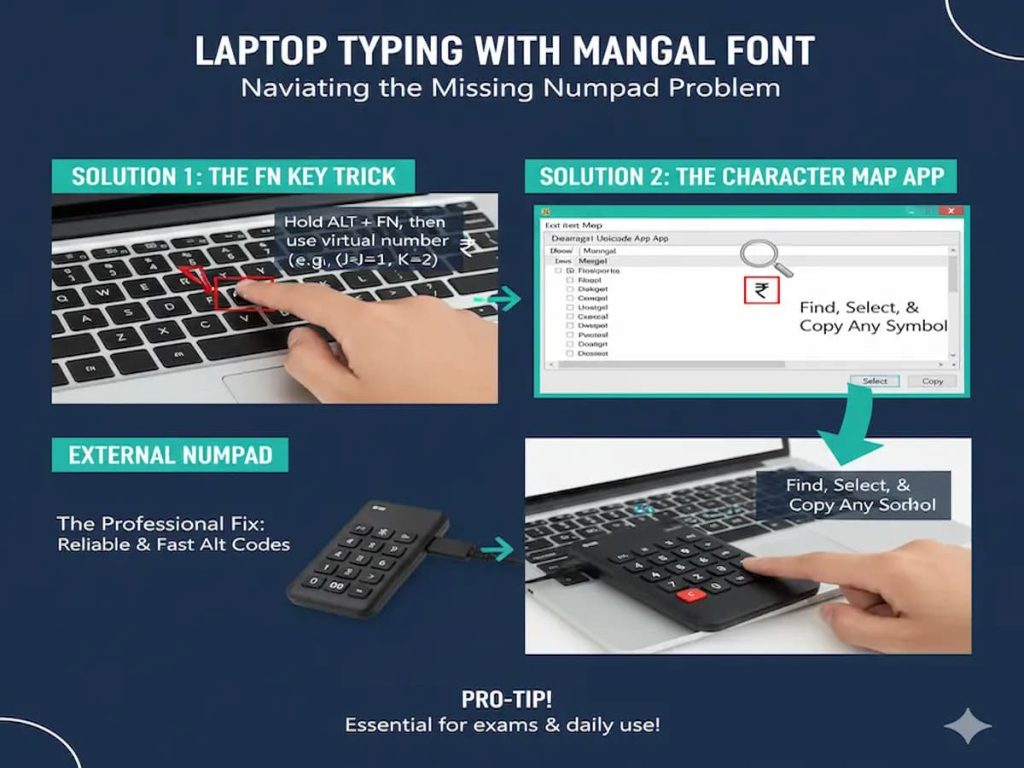
Solution 1: Activating the Hidden, Virtual Numpad (The Fn Key)
Your compact laptop likely has a secret, built-in numeric keypad hidden within your standard QWERTY keys. You just need the right key combination to activate it.
How the Fn Key Unlocks the Numpad
Most manufacturers (Dell, HP, Lenovo, etc.) map the Numpad functions onto the right side of the keyboard, often overlaying keys like $U, I, O, P, J, K, L$.
- Locate the Fn Key: This is usually found near the bottom-left corner of your keyboard, next to the Ctrl key.
- Locate the Virtual Numpad: Look closely at the keys $U, I, O, J, K, L$. You may see tiny, secondary numbers (like a ‘7’ or an ‘8’) printed on them, often in a different color.
- Activate: Press and hold the Fn key simultaneously with the Alt key.
- Type the Code: While holding both Alt and Fn, use the virtual numeric keys (e.g., $J$ acts as $1$, $K$ as $2$, $L$ as $3$, etc.) to type your Alt Code (e.g., $8377$).
- Release: Release the Alt and Fn keys to generate the character.
Tip: This process can feel awkward at first. You must practice the Alt + Fn + Numpad keys sequence repeatedly until it becomes muscle memory, especially for frequently used codes like the Rupee symbol ($₹$).
Solution 2: The Character Map Alternative (The Reliable Backup)
If the Fn key method is too cumbersome, or if you only need a special character occasionally, the Windows Character Map is your most reliable backup.
Using the Windows Character Map
The Character Map allows you to visually select and copy any Unicode character, including all those needed for Mangal font, without needing an Alt Code.
- Open Character Map: Press the Windows Key and search for “Character Map.”
- Select the Font: In the ‘Font’ dropdown, select Mangal.
- Find the Character: Scroll down to find the Devanagari block (or any special symbol you need).
- Copy/Paste: Click on the character (e.g., $ॐ$), click Select, then Copy.
- Paste: Paste the character directly into your typing software (Ctrl + V).
Pro Tip: This is great for inserting a symbol once or twice in a document, but it is too slow to use during a timed exam or for continuous professional typing.
Solution 3: The Dedicated External Numpad (The Professional Fix)
If you are seriously preparing for an exam like CPCT or use Mangal typing professionally for several hours a day, the most efficient solution is investing in a separate, dedicated external Numpad.
Why an External Numpad is Worth the Investment
- Speed and Accuracy: It restores the proper functionality of Alt Codes, eliminating the need for the clumsy Fn key method. This means instant access to characters like $₹$ and $।’$.
- Portability: These are compact, USB devices that you can easily carry in your laptop bag.
- Affordability: A quality Numpad can be purchased for a very low cost and will last for years.
Recommendation: When buying, ensure the Numpad connects via a standard USB-A port or includes a reliable adapter for your laptop’s USB-C ports.
Essential Laptop-Specific Troubleshooting
Even with the Numpad issue solved, laptop users face a few unique challenges with Mangal typing:
- Touchpad Interference: Be careful not to brush the touchpad while touch typing. This can randomly move your cursor and introduce errors. Consider temporarily disabling the touchpad while typing.
- Key Bounce: Laptop keys often have low travel, leading to “key bounce” where a single press registers twice (e.g., $क्क्$ instead of $क$). If this happens, slow down slightly and check your keyboard responsiveness settings.
- Missing Numeric Keys: Remember, on many Remington layouts, the Purn Viram ($।$) is on the minus key, and the Halant ($्$) is on the equals key (Shift + =). These keys are still present on your laptop keyboard, even without the Numpad.
Don’t let a missing Numpad hold you back from achieving high speed and accuracy in Mangal Font typing. Implement one of these three solutions today and continue your journey toward professional proficiency!
Need to practice the hardest shortcuts first? Review our guide on The Unwritten Rules of the Halant {्}